Send alerts to Microsoft Teams
Route incidents to a Microsoft Teams channel. Microsoft has retired the old Office 365 connectors, so the current way is the Teams Workflows app; it takes about two minutes.
4 min read
247Monitor posts to Teams via a webhook generated by the Workflows app. You create a flow from a ready-made template, copy its URL, and paste it into a 247Monitor alert channel.
Create the webhook in Teams
- 1
Start a workflow on your channel
In Microsoft Teams, find the channel you want alerts in, click the ••• menu next to it, and choose Workflows. (You can also open the Workflows app from the left rail and create one there.)
- 2
Pick the webhook template
Choose the template “Send webhook alerts to a channel”. (Teams also lists “Send webhook alerts to a chat”; pick the channel one.) Teams will ask you to confirm the team and channel the messages should land in.
- 3
Create it and copy the URL
Finish the wizard. Teams generates a webhook URL that looks like
https://prod-00.westeurope.logic.azure.com/workflows/…. Copy it.Heads upThe URL is shown once. Copy it before closing the dialog; if you lose it you'll need to open the workflow again to retrieve or regenerate it.
Connect it in 247Monitor
- 4
Add a Teams alert channel
In the dashboard, open Alert Channels, click Add Channel and choose Teams.
- 5
Paste the webhook URL
Name the channel and paste the Workflows URL into the Webhook URL field, then save.
app.247monitor.net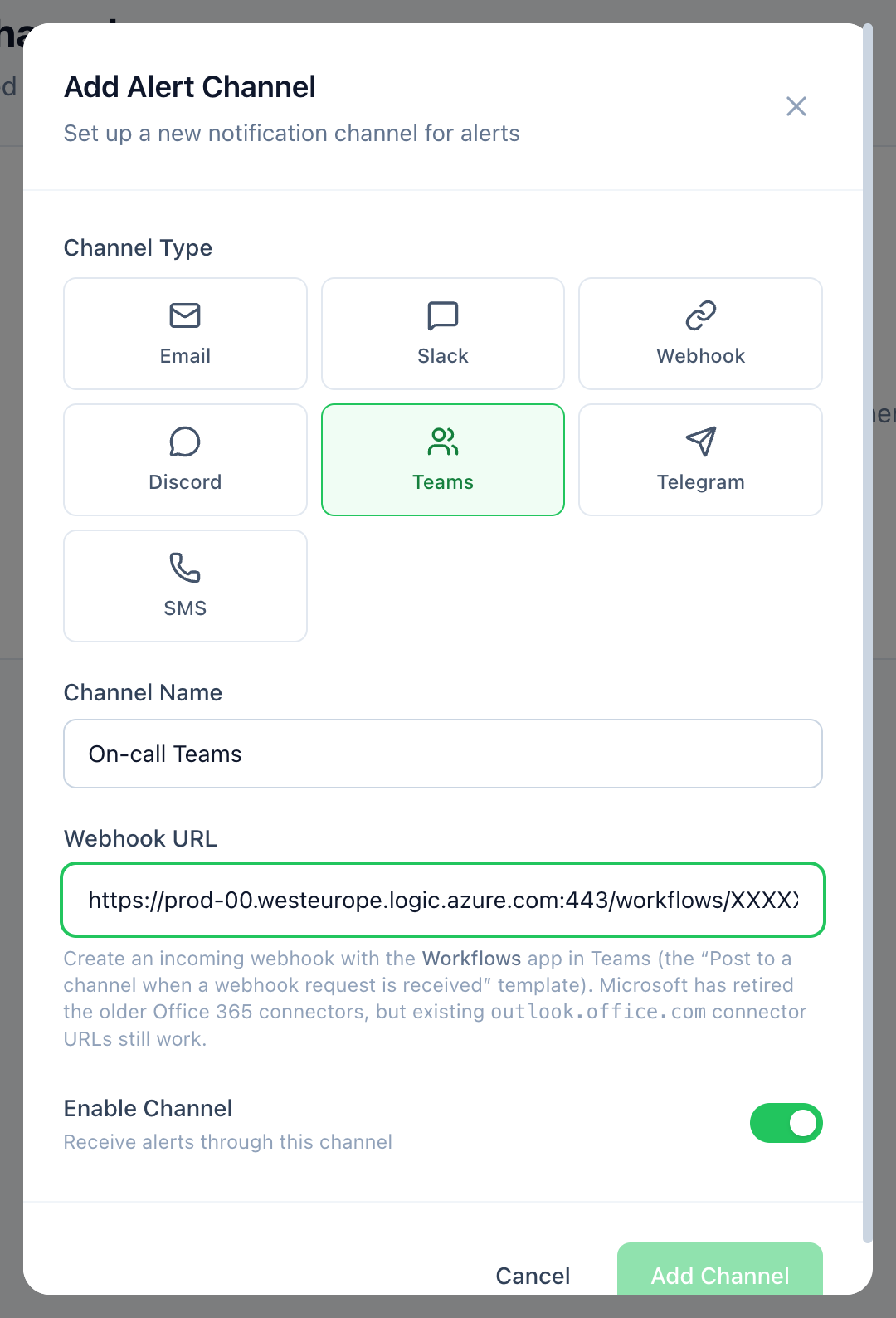
The form links straight to Microsoft's Workflows guidance. - 6
Test and attach to monitors
Use Send test to confirm a card appears in your Teams channel, then attach the channel to the monitors that should use it, on each monitor or when you create one.
outlook.office.com connector URL from before Microsoft's change? Existing connector URLs still work; paste it into the same field. New ones, though, must come from the Workflows app.Keep reading