Send alerts to Discord
Post alerts into a Discord channel using a channel webhook. No bot to host and no extra app to install.
3 min read
Discord has built-in channel webhooks: a URL that posts messages straight to one channel. You create it in Discord, then paste it into a 247Monitor alert channel.
Create the webhook in Discord
- 1
Open the channel's integrations
Hover the channel you want alerts in and click the gear icon (Edit Channel), then go to Integrations → Webhooks. You need the Manage Webhooks permission on that server.
- 2
Create a webhook
Click New Webhook. Give it a name like “247Monitor” (and an avatar if you like), and confirm it's pointed at the right channel.
- 3
Copy the webhook URL
Click Copy Webhook URL. It looks like
https://discord.com/api/webhooks/…/….Heads upAnyone with this URL can post to your channel, so keep it private and don't commit it to a public repo.
Connect it in 247Monitor
- 4
Add a Discord alert channel
In the dashboard, open Alert Channels, click Add Channel and choose Discord.
app.247monitor.net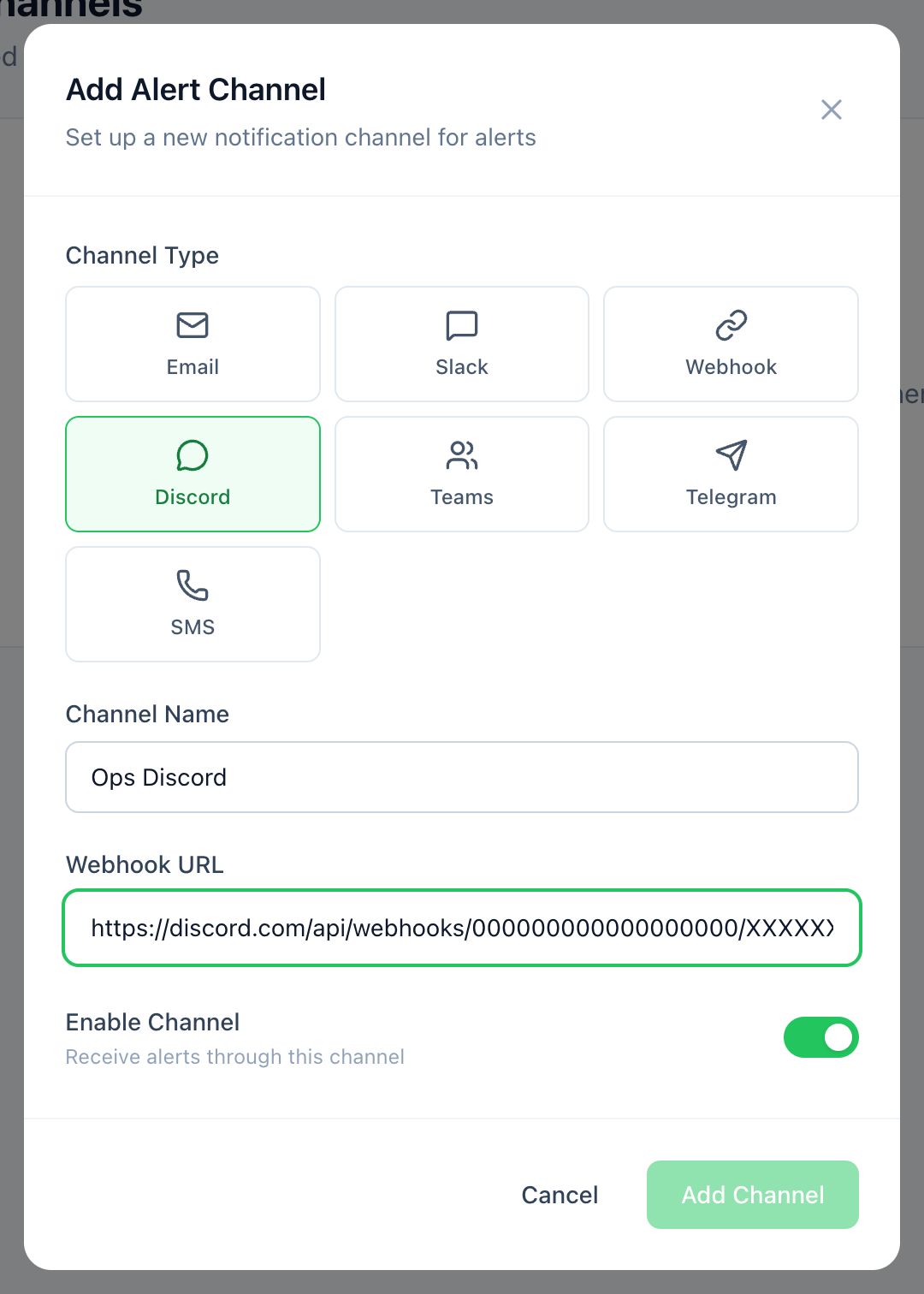
Choose Discord and paste the channel webhook URL. - 5
Paste the URL, test, and attach
Name the channel, paste the Webhook URL, and save. Use Send test to confirm a message lands in Discord, then attach the channel to your monitors, on each monitor or when you create one.